PDF guides
How to Watermark a PDF Online
Watermarks help label a PDF before you share it with clients, coworkers, students or reviewers. If you need to watermark PDF online, a browser-based tool can make the job faster while reducing unnecessary uploads whenever supported by your browser, file and device.
PDFextreme provides a simple Watermark PDF tool for everyday document tasks, including draft review, branding, confidentiality labels and document control.
What Is a PDF Watermark?
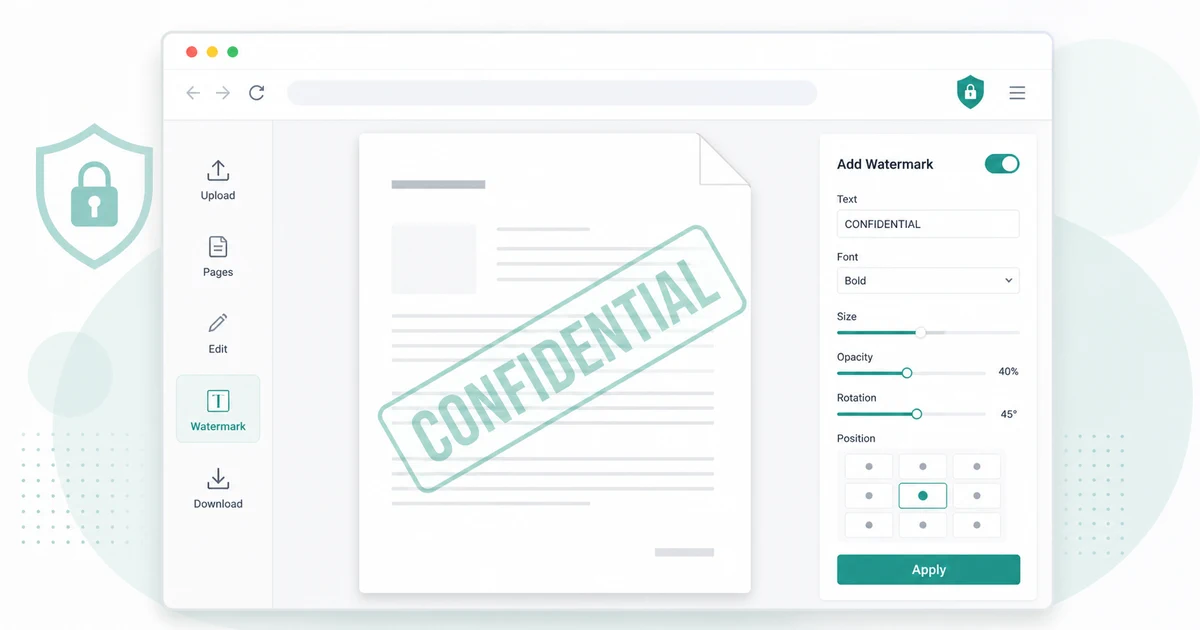
A PDF watermark is visible text or an image placed over or behind the content of a PDF page. It can identify status, ownership, confidentiality or branding. Common examples include “Draft”, “Confidential”, “Sample”, a company name, a logo or a review label.
A watermark is not the same as encryption or password protection. It can make the intended use of a document clearer and may discourage casual misuse, but it does not fully prevent copying, screenshots or unauthorized sharing.
Common Reasons to Add a Watermark to a PDF
Watermarks are useful when a file needs a clear visible label. You might mark a report as Draft before final approval, label a proposal as Confidential, add a company name to a client preview, or identify an internal document during review.
They can also help with version control. If several people are reviewing similar PDFs, a visible label makes it easier to understand whether a file is a sample, a working copy or a final document.
Text Watermarks vs Image Watermarks
Text watermarks are useful for words like Draft, Confidential, Sample, Review Copy or a company name. They are usually simple, readable and lightweight.
Image watermarks are useful for logos or visual branding where available. The result depends on the image quality, size and transparency. A clean image with good contrast works better than a busy or low-resolution graphic.
The right choice depends on the purpose of your document. If you only need a status label, text may be enough. If you want branding, an image watermark may be better depending on the current tool options. You can start with the Watermark PDF tool.
Where Should You Place a PDF Watermark?
Placement affects readability. A centered watermark is easy to notice, while a diagonal watermark can show status across the page without looking like normal body text. A top or bottom watermark may work when the page center contains important content.
If opacity, placement or style settings are available, aim for a watermark that is visible but not distracting. Avoid covering signatures, dates, totals, stamps, legal text, form fields or other important details. Preview the result when available before downloading.
Why Privacy Matters When Adding Watermarks Online
PDFs can contain contracts, invoices, reports, proposals, legal documents, personal records, financial information, work files and client documents. These files should be handled carefully.
PDFextreme is designed to process supported PDF tasks directly in your browser whenever possible. Browser-based processing can reduce unnecessary uploads depending on your browser, file and device. Learn more in How PDFextreme Protects Your Files and the Privacy Policy.
How PDFextreme Helps You Watermark PDFs
PDFextreme offers a free online PDF watermark tool for adding visible labels to documents. In general, you can select a PDF, choose the watermark type where available, adjust supported options, apply the watermark and download the updated file.
Depending on the selected watermark type and current tool options, you may be able to add a text watermark, add an image watermark, adjust placement or preview pages. You can use it to add watermark to PDF files, including text labels where available and image watermarks when supported by the current tool options. Use the controls shown on the Watermark PDF page and review the output carefully.
Step-by-Step: How to Add a Watermark to a PDF
- Open the Watermark PDF tool.
- Select or drag your PDF.
- Choose a text watermark or image watermark if available.
- Enter the watermark text or choose the watermark image.
- Adjust placement, opacity or style options where available.
- Preview the result when supported.
- Add the watermark.
- Download the watermarked PDF.
After downloading, open the file and check the pages that matter most. Make sure the watermark is readable and does not cover important information.
Tips for Better PDF Watermarks
Keep watermark text short. Words like Draft, Confidential or Review Copy are easier to understand than long sentences. Use subtle styling when possible so the PDF remains readable.
Keep a backup of the original PDF before editing. If the final file becomes larger, use Compress PDF. If the document needs page changes first, consider Organize PDF or Rotate PDF before watermarking.
Watermarking Is Not the Same as Securing a PDF
A watermark can show ownership, status or confidentiality. It may discourage casual copying, but it does not guarantee legal protection and does not replace encryption, access control, digital signatures or legal advice.
If a PDF contains highly sensitive information, share it carefully and only with people who need access. A watermark is a useful label, not a complete security system.
Should You Add a Watermark Before or After Editing a PDF?
Watermarking usually belongs near the end of a PDF workflow. Organize pages first, remove pages you do not need and rotate sideways pages before adding the final watermark. If you need to combine or separate files, use Merge PDF or Split PDF first.
If you need visible page references, use Add Page Numbers to PDF before or after watermarking depending on the layout. If you need to delete sensitive pages, use Remove PDF Pages before watermarking the cleaned copy.
Related PDF Tools You May Need
PDFextreme includes tools for related workflows: Add Page Numbers to PDF, Organize PDF, Rotate PDF, Remove PDF Pages, Merge PDF, Split PDF, Compress PDF and all PDF tools.
Related guides include compress a PDF without uploading it unnecessarily, merge PDF files online safely, split a PDF into pages, remove pages from a PDF, rotate PDF pages online, JPG to PDF vs PNG to PDF and add page numbers to a PDF online.
FAQ
Can I add a watermark to a PDF for free?
Yes. PDFextreme provides a free PDF watermark tool for supported browser-based tasks whenever possible.
Can I add a text watermark to a PDF?
Where available, you can add a text watermark such as Draft, Confidential, Sample or a company name.
Can I add an image or logo watermark to a PDF?
Image watermark support depends on the current tool options. If supported, use a clean image and preview the result before downloading.
Does a watermark protect a PDF from copying?
A watermark can discourage casual misuse, but it does not fully prevent copying and does not replace encryption or access control.
Can I compress a PDF after adding a watermark?
Yes. If the final file is larger than expected, use the Compress PDF tool after watermarking.
Is it safe to watermark a PDF online?
Choose tools carefully. PDFextreme is designed to process supported PDF tasks in your browser whenever possible, which can reduce unnecessary uploads depending on your browser, file and device.
Conclusion
Watermarks help label, brand and organize PDFs. Text watermarks are useful for document status, while image watermarks can support logos or visual branding where available. Preview the file and avoid covering important content.
Try the Watermark PDF tool or explore all PDFextreme PDF tools for related document tasks.
Free, fast and privacy-focused PDF tools designed to work directly in your browser whenever possible.
Privacy & Trust
© 2026 PDFextreme. All rights reserved.