PDF files are useful because they keep information in one stable document, but sometimes you do not need the whole file. You may only need one chapter from a report, a few pages from a scanned packet, a signed form from a larger document, or selected records to send to someone else. If you want to split PDF into separate pages, a clear online tool can help you create a smaller, more focused file.
Safety matters too. PDFs can include private, legal, school, work, or financial information. PDFextreme is designed to help with supported browser-based PDF tasks whenever possible, so you can reduce unnecessary uploads while keeping the workflow simple.
What Does It Mean to Split a PDF?
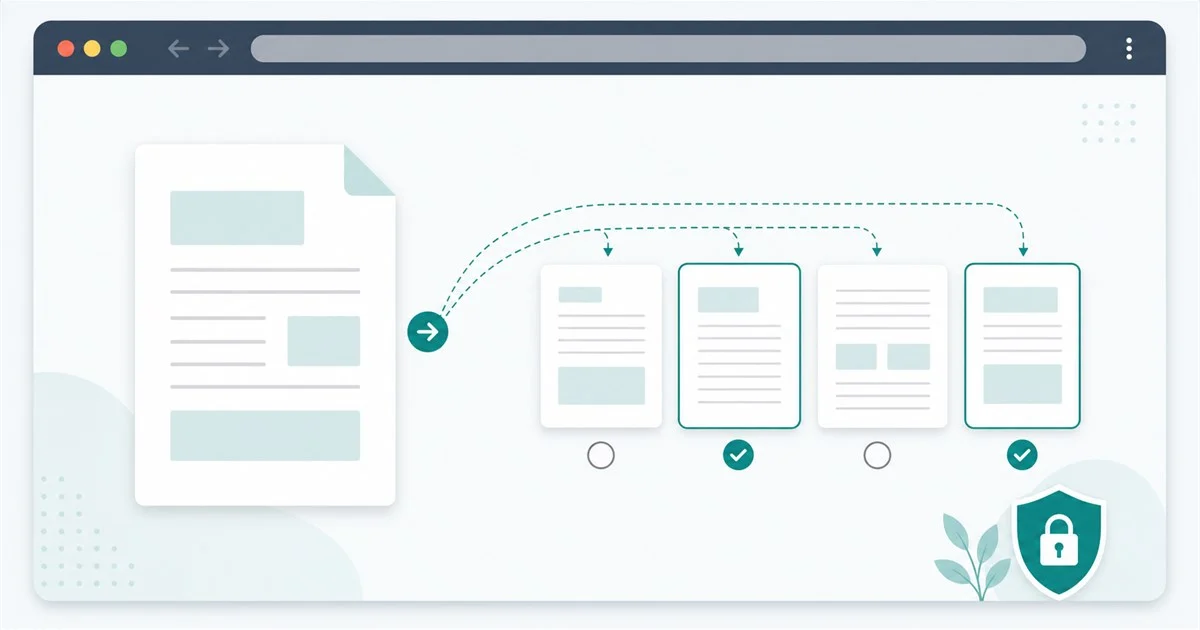
Splitting a PDF means creating a new PDF from selected pages in an existing document. Instead of sending or saving the entire file, you choose the pages you need and generate a separate PDF from those pages.
A PDF splitter may let you choose individual pages, page ranges, or a combination of both. For example, you might select page 2, pages 5 through 8, and page 12. The original PDF remains unchanged, and the new output file contains only the pages you selected.
Page order matters. If you select pages in a specific range, the output should follow that document order so the result remains easy to read.
Common Reasons to Split a PDF
People split PDF files for many practical reasons. You might need to extract only the pages that matter, send a smaller document by email, separate invoices or forms, remove unrelated sections from a packet, prepare a file for an online upload, or organize scanned documents after using a scanner app.
Splitting can also make documents easier to review. Instead of asking someone to open a large PDF and search for the relevant section, you can send a focused file with only the pages they need.
Why Privacy Matters When Splitting PDFs Online
PDFs often contain more sensitive information than people realize. They may include personal records, contracts, legal documents, invoices, school or work files, signatures, financial information, addresses, account details, or business records.
That is why it is worth being careful with unknown online PDF services. A tool that requires unnecessary uploads may not be the best choice for documents that contain private information. Browser-based PDF tools can reduce that risk for supported tasks, depending on your browser, file, and device.
Browser-Based PDF Splitting Explained
A browser-based PDF tool is designed to do work inside your web browser whenever technically possible. For supported PDF tasks, the file can be processed directly on your device instead of being sent away for server-side processing.
This does not mean every file, browser, or device behaves identically. Some files may be too large, damaged, password-protected, or unsupported. Still, browser-based processing can reduce unnecessary uploads and gives users a more private way to handle common PDF tasks.
PDFextreme is designed to work in your browser whenever possible for supported PDF tasks, while keeping the interface simple enough for everyday use.
How PDFextreme Helps You Split PDFs
The Split PDF tool from PDFextreme gives you a free online PDF splitter for extracting selected pages from one PDF. You can select or drag your PDF into the tool, wait for page thumbnails to appear, and then choose the pages you want to extract.
The tool supports page thumbnail previews, clickable page selection, manual page ranges, synchronized range and thumbnail selection, and browser-based processing whenever possible. After choosing the pages, you can generate and download a new output PDF.
This is especially helpful when page numbers alone are not enough. Seeing thumbnails makes it easier to avoid selecting the wrong page, especially with scanned documents or files that have cover pages, blank pages, or repeated forms.
Step-by-Step: How to Split a PDF with PDFextreme
- Open the Split PDF tool.
- Select or drag your PDF into the upload area.
- Wait for the page thumbnails to appear.
- Click the pages you want to extract, or type a page range manually.
- Review the selected pages before creating the output.
- Create the split PDF.
- Download the result to your device.
The preview is there to help you make a better decision before processing the file. If you prefer typing page ranges, you can still use the manual field for formats like one page, several individual pages, or a range of consecutive pages.
Tips for Choosing the Right Pages
- Check page numbers carefully before creating the output.
- Use thumbnails to avoid selecting the wrong page.
- Use ranges for consecutive pages, such as pages 2 through 6.
- Select individual pages when the pages are not next to each other.
- Use Remove PDF Pages instead if your goal is deleting pages from a copy of the original document.
- Use Compress PDF if the split result becomes larger than expected.
If file size is your main concern, you may also find our guide on how to compress a PDF without uploading it unnecessarily useful after creating your split file.
Split PDF vs Remove Pages: What Is the Difference?
Split PDF and Remove PDF Pages sound similar, but they are useful in different situations.
Split PDF extracts selected pages into a new PDF. Use it when you want to keep only specific pages from a larger file. For example, if you only need pages 3 through 6 from a 20-page document, splitting is the right approach.
Remove PDF Pages deletes selected pages from a copy of the document. Use it when most of the document is useful, but a few pages should be removed.
In short: use Split PDF when you want to keep selected pages, and use Remove PDF Pages when you want to discard unwanted pages.
Related PDF Tools You May Need
If you are organizing documents, PDFextreme has several related tools that may help. Use Split PDF to extract selected pages, Remove PDF Pages to delete unwanted pages, Merge PDF to combine files, Compress PDF to reduce file size, and Organize PDF to reorder pages.
You can browse all available tools on the PDF Tools page. For more about PDFextreme’s privacy-focused approach, read How PDFextreme Protects Your Files and the Privacy Policy. You may also like our guide on how to merge PDF files online safely.
FAQ
Can I split a PDF for free?
Yes. PDFextreme provides a free Split PDF tool for extracting selected pages from a PDF.
Can I split a PDF by page range?
Yes. You can type page ranges manually, such as a single page, a group of pages, or a range of consecutive pages.
Can I extract only certain pages from a PDF?
Yes. You can select only the pages you want to include in the new PDF, either by using thumbnails or by typing page ranges.
Is it safe to split PDFs online?
It depends on the tool and how it handles files. PDFextreme is designed for browser-based processing whenever possible for supported PDF tasks, which can reduce unnecessary uploads.
What is the difference between splitting a PDF and removing pages?
Splitting a PDF creates a new PDF from selected pages. Removing pages deletes selected pages from a copy of the document. Use Split PDF when you want to keep only certain pages.
Does PDFextreme upload my PDF to a server?
PDFextreme is designed to process supported browser-based tasks directly in your browser whenever possible, depending on your browser, file, and device. Avoid using tools that require unnecessary uploads for sensitive documents.
Conclusion
Splitting a PDF is useful when you only need part of a larger document. With PDFextreme, you can preview pages, select what you need, create a new PDF, and download the result in a simple workflow designed for browser-based processing whenever possible.
Try the Split PDF tool, or explore more options on the PDF Tools page.