PDF guides
How to Rotate PDF Pages Online
Learn how to rotate all PDF pages, selected pages, or use advanced custom-angle rotation with browser-based PDF tools whenever possible.
Sideways pages can make a PDF hard to read, print, or share. If a scan was saved in the wrong direction, a phone photo became a PDF in portrait mode, or one page is upside down, you may need to rotate PDF pages online before sending the file to someone else.
PDFextreme is built for simple PDF work with privacy in mind. The Rotate PDF tool is designed to process supported PDF tasks directly in your browser whenever possible, so you can correct page orientation without unnecessary extra steps.
What Does It Mean to Rotate a PDF?
Rotating a PDF changes the orientation of one or more pages. A sideways page can be turned 90 degrees, an upside-down page can be rotated 180 degrees, and mixed-orientation documents can be corrected one page at a time.
In most cases, the original PDF on your device should remain unchanged. The tool creates a new rotated PDF that you can download after choosing the pages and angle you want.
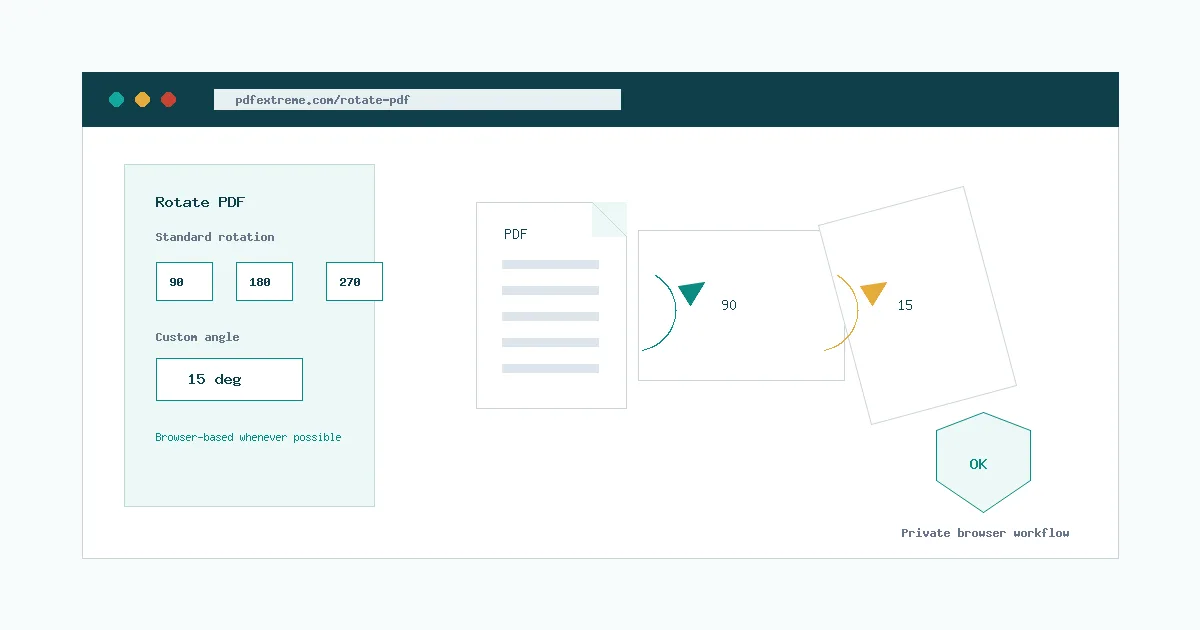
Standard PDF rotation usually means rotating pages by 90, 180, or 270 degrees. These angles match the way most PDF readers understand page orientation and are normally the best choice for predictable results.
Common Reasons to Rotate PDF Pages
People rotate PDF pages to fix sideways scans, upside-down documents, phone-captured pages, mixed portrait and landscape pages, and tables that are easier to read horizontally.
Rotating pages can also help before printing, emailing, uploading to a form, or combining PDFs into one package. Correct orientation makes the final document easier for the next person to use.
Standard PDF Rotation vs Custom-Angle Rotation
Standard rotation uses 90, 180, or 270 degrees. It is usually the safest option because it can preserve the original PDF structure, including selectable text and vector content where the original PDF supports it.
Custom-angle rotation lets you choose angles such as 15 degrees, -10 degrees, or 33 degrees. This is useful when a scanned page is slightly tilted and a normal 90-degree turn is too much.
Because PDFs are complex, custom-angle rotation may need to convert selected pages into images to preserve the visual result. Text selection and search may be affected on those pages, and file size may increase. For most documents, start with standard rotation.
Why Privacy Matters When Rotating PDFs Online
PDFs often include sensitive information: personal documents, contracts, legal files, scanned IDs, invoices, work documents, forms, and signatures. Before using an online tool, it is worth asking whether the file really needs to be uploaded.
PDFextreme focuses on browser-based processing whenever possible. For supported browser-based tasks, processing can happen directly in your browser depending on your browser, file, and device. This can reduce unnecessary uploads while keeping the workflow simple.
Browser-Based PDF Rotation Explained
A browser-based PDF tool uses your web browser to do the work whenever technically possible. Instead of sending every file to a remote server for processing, supported tasks can run locally in the browser using PDF libraries.
This approach is helpful for everyday edits such as rotating pages, removing pages, splitting pages, or merging documents. Very large files, damaged PDFs, password-protected documents, or unusual PDF features may behave differently, so no tool should promise that every file on every device works the same way.
How PDFextreme Helps You Rotate PDFs
The Rotate PDF tool is a free online PDF rotator designed to work in your browser whenever possible. You can select one PDF, preview page thumbnails, choose all pages or selected pages, and rotate pages by standard angles.
The tool supports 90, 180, and 270-degree rotation, plus a visual rotation preview so you can see which pages will be affected before creating the new PDF.
PDFextreme works as a free PDF rotator for standard page rotation, while the advanced custom angle PDF rotation option can help with visual corrections when you need more control.
For advanced cases, PDFextreme also includes an optional Custom angle mode. The custom angle range is -180 to 180 degrees, with a default of 15 degrees. When this mode is active, the tool explains: “Custom-angle rotation may convert selected pages into images to preserve the visual result. Text selection and file size may be affected.”
Step-by-Step: How to Rotate a PDF with PDFextreme
- Open the Rotate PDF tool.
- Select or drag your PDF into the upload area.
- Wait for the page thumbnails to appear.
- Choose whether to rotate all pages or selected pages.
- Select a standard angle: 90, 180, or 270 degrees.
- Or choose Custom angle for advanced rotation.
- Review the visual preview carefully.
- Rotate the PDF.
- Download the result.
When Should You Use Custom Angle?
Use custom angle when a page is slightly tilted and needs a specific visual correction. For example, a scanned page might need a small 12-degree adjustment, or a phone-captured page might look better after a -8-degree correction.
Custom angle is an advanced option. Selected custom-rotated pages may become image-based so the visual result can be preserved. That tradeoff can be worthwhile for scans, receipts, forms, or image-heavy PDFs, but it may not be ideal when selectable text is important.
Tips Before Rotating PDF Pages
- Preview pages carefully before creating the output PDF.
- Use standard angles when possible.
- Rotate only selected pages if the document has mixed orientations.
- Keep a backup of the original PDF.
- If the final PDF becomes large, try the Compress PDF tool.
- If page order also needs work, use Organize PDF.
- If unwanted pages are included, remove them with Remove PDF Pages.
Related PDF Tools You May Need
After rotating pages, you may also want to organize PDF pages, remove unwanted pages, split a PDF, merge PDFs, or compress the final file. You can also browse all PDF tools.
For more about privacy, read how PDFextreme protects your files and the Privacy Policy. Related guides include compress a PDF without uploading it unnecessarily, merge PDF files online safely, split a PDF into separate pages, and remove pages from a PDF online.
FAQ
Can I rotate a PDF for free?
Yes. PDFextreme provides a free Rotate PDF tool for correcting page orientation online.
Can I rotate only selected pages in a PDF?
Yes. You can choose all pages, click page thumbnails, or type a page range to rotate only selected pages.
Can I rotate a PDF by a custom angle?
Yes. PDFextreme includes an optional Custom angle mode from -180 to 180 degrees. Custom angle is best for visual corrections, such as slightly tilted pages, and may convert selected pages into images.
Is custom-angle PDF rotation the same as standard rotation?
No. Standard rotation uses 90, 180, or 270 degrees and is usually the safest option. Custom-angle rotation may convert selected pages into images, which can affect text selection and file size.
Is it safe to rotate PDFs online?
Choose tools carefully, especially for sensitive files. PDFextreme is designed to process supported browser-based tasks in your browser whenever possible, which can reduce unnecessary uploads depending on your browser, file, and device.
Does PDFextreme upload my PDF to a server?
PDFextreme is designed for browser-based processing whenever possible. For supported tasks, your PDF does not need to be uploaded unnecessarily, but behavior can depend on the file, browser, and device.
Conclusion
Rotating PDF pages should be simple, especially when only a few pages are sideways or slightly tilted. Use the PDFextreme Rotate PDF tool to rotate all pages, selected pages, or advanced custom angles in your browser whenever possible. Then explore related PDF tools to organize, clean up, merge, split, or compress your document.
Free, fast and privacy-focused PDF tools designed to work directly in your browser whenever possible.
Privacy & Trust
© 2026 PDFextreme. All rights reserved.