PDF Guide
How to Merge PDF Files Online Safely
Learn how to combine PDF files safely, check file order, and use browser-based PDF tools whenever possible.
Combining documents is a common part of everyday work. You might need to bring together reports, forms, scanned pages, school documents, invoices, contracts, signed files, or project materials before sending them to someone else. If you need to merge PDF files online, it is worth choosing a tool that is simple, clear, and careful with your documents.
PDF files can contain private or business information, so safety matters. A convenient online tool should not make users take unnecessary risks. PDFextreme is designed to help with browser-based PDF tasks whenever possible, so supported PDF tasks can be processed directly in your browser depending on your device, file, and browser capabilities.
What Does It Mean to Merge PDF Files?
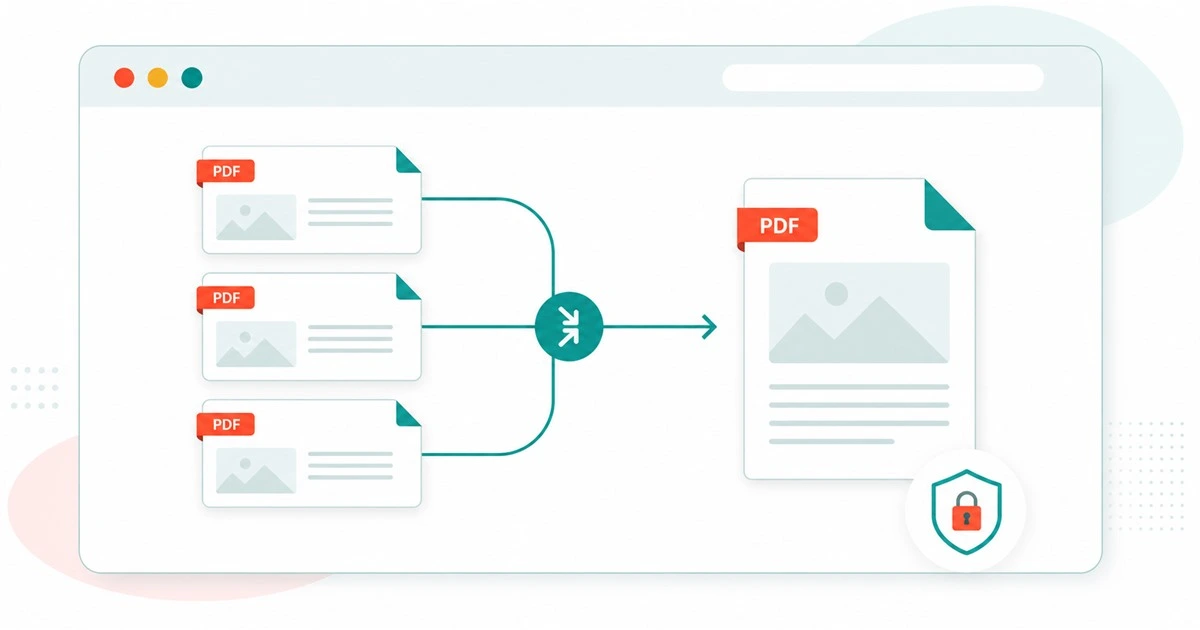
Merging PDF files means combining two or more separate PDF documents into one final PDF. Instead of sending several attachments, you can create one organized file that contains everything in the order you choose.
File order matters. If you add a cover page first, then a contract, then an invoice, the merged PDF should follow that same sequence. This is useful when you want to create a single document package for email, upload, printing, or archiving.
Merging is especially helpful when related documents are spread across multiple files. For example, a scanned ID, a completed form, and a signed agreement can be combined into one PDF so they are easier to review and share.
Why Safety Matters When Combining PDFs Online
PDFs are not always simple documents. They may include personal information, contracts, legal records, IDs, invoices, financial documents, business records, forms, and signatures. Before using any online PDF tool, it is smart to think about what is inside the file.
Some online services require files to be uploaded to a remote server before processing. That may be acceptable for some documents, but it is not always necessary for supported browser-based tasks. When working with private files, users should choose tools carefully and avoid unnecessary uploads whenever possible.
A safe workflow also means checking the final document before sending it. Make sure the files are in the right order, remove anything that should not be included, and keep your original files in case you need to start again.
Browser-Based PDF Merging Explained
Browser-based PDF tools can process supported tasks directly inside the browser whenever possible. Instead of sending a file somewhere else for every step, the tool can use your browser and device to perform the operation locally when the file, browser, and feature support it.
This approach can reduce unnecessary uploads and gives users a more private way to handle common PDF tasks. It should still be described carefully: not every browser, device, or file behaves identically, and some files may have restrictions such as passwords, unusual structure, or corruption.
PDFextreme uses cautious privacy language for this reason. The goal is to make useful PDF tools that are free, simple, and designed to work in your browser whenever possible for supported PDF tasks.
How PDFextreme Helps You Merge PDFs
The Merge PDF tool from PDFextreme is a free online PDF merger designed for quick document combining. You can select multiple PDF files, check the selected files, reorder them, remove anything you do not want, and download the merged PDF.
The current tool also includes first-page previews for selected PDFs, along with file name, file size, and page count when available. This helps you confirm that you selected the right documents before combining them.
Because the merge process is designed to work in your browser whenever possible, it supports PDFextreme’s privacy-focused approach while keeping the workflow simple for everyday users.
Step-by-Step: How to Merge PDFs with PDFextreme
- Open the Merge PDF tool.
- Select your PDF files or drag them into the upload area.
- Check the first-page previews to confirm the files are correct.
- Review the file names, file sizes, and page counts when shown.
- Confirm the file order before merging.
- Drag files or use the available controls to reorder them.
- Remove any file you do not want to include.
- Click the merge button.
- Download the merged PDF.
After downloading, open the merged file and quickly review it. This extra check helps catch ordering mistakes before you email, upload, or archive the document.
Tips Before Merging PDF Files
- Check the file order carefully before merging.
- Rename files before selecting them if that helps you organize the sequence.
- Use Remove PDF Pages first if a document includes pages you do not need.
- Use Split PDF first if only some pages from a larger document should be included.
- Use Compress PDF after merging if the final file becomes too large. If your merged file becomes too large, see our guide on how to compress a PDF without uploading it unnecessarily.
- Avoid unknown tools for sensitive files when a browser-based option can do the job.
- Keep a backup of the original PDFs.
Common Use Cases for Merging PDFs
PDF merging is useful in many everyday situations. You might combine scanned documents into one file, merge invoices for accounting, prepare school or work assignments, combine signed forms, organize project files, or create one PDF package for email or upload.
It can also help reduce confusion. Instead of sending five attachments and hoping the recipient opens them in the right order, you can send one PDF with a clear structure.
Related PDF Tools You May Need
If you are organizing documents, you may also need a few related PDFextreme tools. Use Split PDF when you only need selected pages, Remove PDF Pages when a file includes unwanted pages, Compress PDF when the final file is too large, and Rotate PDF if pages are sideways.
You can also browse all PDF tools, read how PDFextreme protects your files, or review the Privacy Policy for more detail.
FAQ
Can I merge PDF files for free?
Yes. PDFextreme provides a free Merge PDF tool that lets you combine PDF files online with a simple browser-based workflow whenever supported by your device and files.
Is it safe to merge PDFs online?
It depends on the tool and the document. For sensitive PDFs, choose tools carefully and prefer browser-based processing whenever possible. PDFextreme is designed to process supported PDF tasks in your browser whenever possible to reduce unnecessary uploads.
Can I reorder PDFs before merging?
Yes. The PDFextreme Merge PDF tool lets you review selected files and reorder them before creating the final merged PDF.
Can I merge multiple PDFs at once?
Yes. You can select multiple PDF files and combine them into one output file. The final order should follow the order you choose in the tool.
What should I do if my merged PDF is too large?
If the merged PDF is too large for email or upload, try the Compress PDF tool. Compression results depend on the structure of the PDF, images inside the file, and browser capabilities.
Does PDFextreme upload my PDF files to a server?
PDFextreme is designed to work directly in your browser for supported PDF tasks whenever possible. This can reduce unnecessary uploads, but behavior may depend on the specific tool, file, browser, and device.
Conclusion
Merging PDFs can make documents easier to send, organize, and store. The key is to keep control over the files, check the order carefully, and choose a tool that respects privacy where possible. Try the PDFextreme Merge PDF tool to combine PDFs online, then explore related tools when you need to split, remove, rotate, or compress your files.
Free, fast and privacy-focused PDF tools designed to work directly in your browser whenever possible.
Privacy & Trust
© 2026 PDFextreme. All rights reserved.