
PDF guides
How to Add Page Numbers to a PDF Online
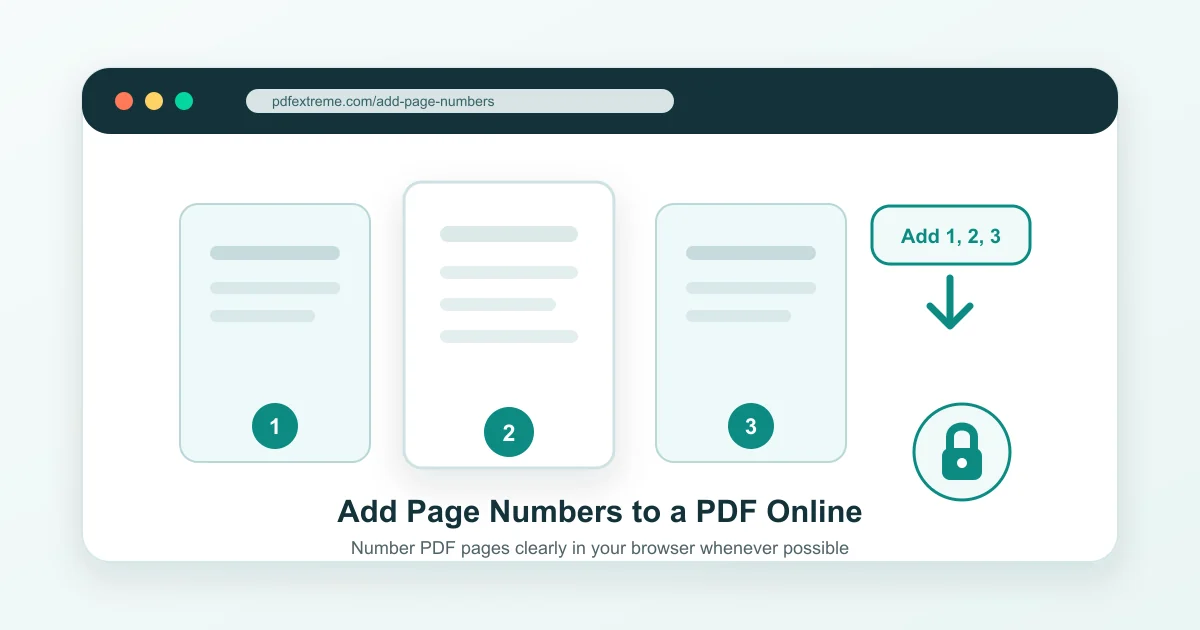
Page numbers make PDFs easier to read, reference, print and share. If you need to add page numbers to PDF online, a simple browser-based tool can help you turn a long document into something easier to follow.
PDFextreme provides an Add Page Numbers to PDF tool designed to work in your browser whenever possible, so supported PDF tasks can be handled with fewer unnecessary uploads depending on your browser, file and device.
Why Add Page Numbers to a PDF?
Page numbers help readers understand where they are in a document. They also make it easier to refer to a specific page during review, printing, school work, office tasks or business communication.
A numbered PDF often feels more organized and professional, especially when it contains reports, contracts, scanned pages or supporting attachments. Page numbers are also helpful when people need to discuss a document by page, such as “see page 4” or “review page 12.”
Common Documents That Need Page Numbers
Many everyday documents benefit from page numbering. Reports, contracts, legal documents, invoices with attachments, school assignments, ebooks, guides, manuals, meeting packets and scanned documents can all become easier to manage when each page has a clear number.
Page numbers are especially useful when the PDF will be printed, shared with a team, submitted to a school or sent as part of a business process.
What Is PDF Page Numbering?
PDF page numbering means adding visible numbers to the pages of a PDF. These numbers are usually placed in a header or footer area, such as bottom center, bottom right, top center or top right, depending on the available tool options.
The goal is to help readers navigate the file without changing the meaning of the document. It is a good idea to preview the result when available, especially if the PDF already has footnotes, signatures, stamps or text close to the edge of the page.
Why Privacy Matters When Adding Page Numbers Online
PDFs can contain sensitive information, including contracts, legal documents, personal records, business reports, financial files, scanned IDs and private work documents. That is why it is worth choosing safe online PDF tools carefully.
PDFextreme is designed to process supported PDF tasks in your browser whenever possible. Browser-based processing can reduce unnecessary uploads, depending on your browser, file and device. You can read more about this on how PDFextreme protects your files and in the Privacy Policy.
How PDFextreme Helps You Add Page Numbers
PDFextreme offers a free online PDF page numbering tool for adding visible page numbers to a document. You can select a PDF, use the available page numbering options, preview pages if supported by the current tool and download the updated PDF.
The Add Page Numbers to PDF tool is useful when you want to number PDF pages without installing complicated software. Options such as placement or preview may depend on the current tool settings, so always review the result before using the final file.
Step-by-Step: How to Add Page Numbers to a PDF
- Open the Add Page Numbers to PDF tool.
- Select or drag your PDF into the tool.
- Wait for the PDF to load.
- Choose the available page numbering options.
- Select placement if that option is available.
- Preview the result when available.
- Add page numbers to the PDF.
- Download the numbered PDF.
Where Should Page Numbers Go?
Common placements include bottom center, bottom right, top center and top right. Bottom center is common for reports, guides and school documents. Bottom right is often used for business documents. Top positions can be useful when the footer area already contains important content.
Wherever you place page numbers, avoid covering existing text, signatures, stamps, footnotes or form fields. If the document has important content near the edges, preview carefully before downloading.
Tips Before Numbering PDF Pages
Keep a backup of the original PDF before making changes. Preview pages if possible, check the final page order and avoid covering important information. If the PDF has sideways pages, rotate them first with the Rotate PDF tool.
It is also wise to organize PDF pages before numbering, remove unnecessary pages with the Remove PDF Pages tool and compress the final file with Compress PDF if it becomes too large.
Should You Add Page Numbers Before or After Editing a PDF?
In most cases, add page numbers near the end of your workflow. Organize pages first, remove pages you do not need and rotate pages if needed. If you need to merge PDFs or split a PDF, it is usually better to do that before final numbering.
After numbering, you can compress the result if file size matters. This keeps the final document clean, ordered and easier to reference.
Related PDF Tools You May Need
PDFextreme includes tools to add page numbers to PDF, Organize PDF, Remove PDF Pages, Rotate PDF, Merge PDF, Split PDF and Compress PDF. You can also browse all PDF tools.
For related guides, see how to compress a PDF without uploading it unnecessarily, merge PDF files online safely, split a PDF into separate pages, remove pages from a PDF, rotate PDF pages online and compare JPG to PDF vs PNG to PDF.
FAQ
Can I add page numbers to a PDF for free?
Yes. PDFextreme provides a free PDF page number tool for adding visible page numbers to a PDF.
Can I choose where the page numbers appear?
Placement options may depend on the current tool settings. Where available, choose a position that does not cover important text, signatures or footnotes.
Should I add page numbers before or after organizing a PDF?
Usually, organize the PDF first. Remove, rotate, merge or split pages before final numbering so the page numbers match the finished document order.
Can I add page numbers to scanned PDFs?
In many cases, visible page numbers can be added to scanned PDF pages. However, adding page numbers does not make scanned text searchable.
Can I compress a PDF after adding page numbers?
Yes. If the numbered PDF is larger than expected, you can use the Compress PDF tool afterward.
Is it safe to add page numbers to a PDF online?
Choose tools carefully, especially for sensitive documents. PDFextreme is designed for supported browser-based tasks whenever possible, which can reduce unnecessary uploads depending on your browser, file and device.
Conclusion
Page numbers make PDFs easier to read, reference, print and share. For the cleanest result, organize, rotate or remove pages before final numbering, then check the output before sharing it.
Try the Add Page Numbers to PDF tool or explore all PDFextreme PDF tools for more ways to work with documents in your browser whenever possible.
Free, fast and privacy-focused PDF tools designed to work directly in your browser whenever possible.
Privacy & Trust
© 2026 PDFextreme. All rights reserved.