PDF guides
JPG to PDF vs PNG to PDF: Which Should You Use?
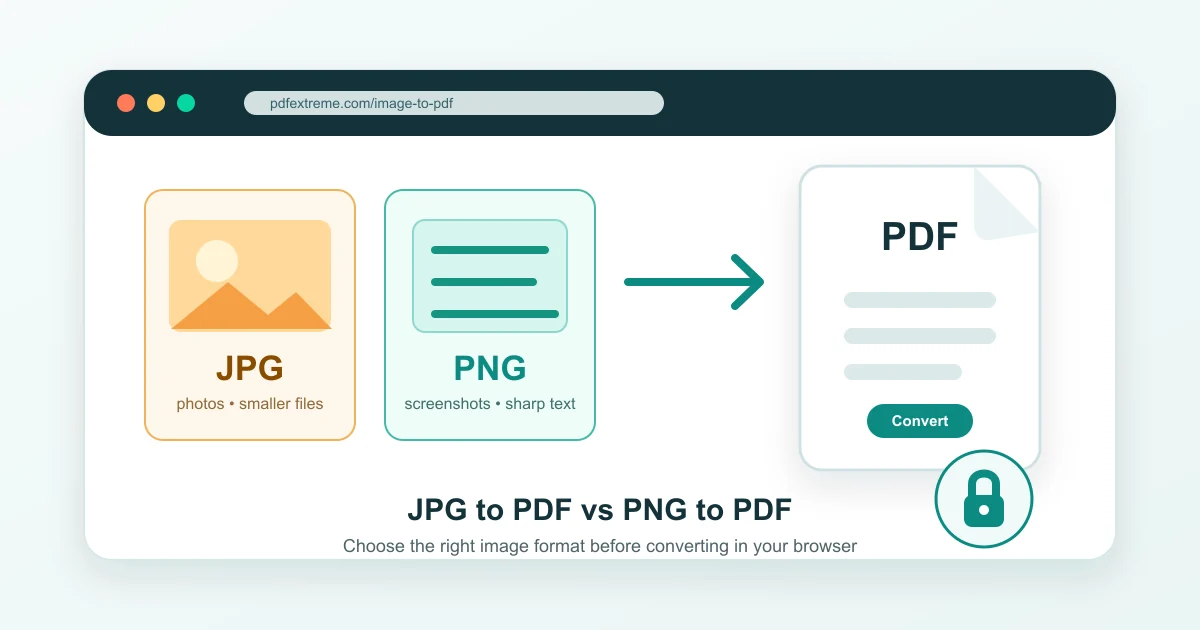
Both JPG and PNG images can be turned into PDF files, but the best choice depends on what kind of image you have. If you are comparing JPG to PDF vs PNG to PDF, the simple answer is this: JPG is usually better for photos and smaller files, while PNG is usually better for screenshots, graphics and sharper details.
PDFextreme provides browser-based tools for converting JPG and PNG images to PDF whenever possible, so you can choose the right format for your document task without installing complicated software.
What Is JPG to PDF?
JPG is one of the most common image formats for photos, camera pictures and scanned visual documents. A JPG file usually uses compression, which helps keep file size smaller. That makes JPG useful when you want to convert photos, receipts, scanned pages or image-heavy documents into a PDF.
For photo-based documents, the JPG to PDF tool is often practical. The tradeoff is that JPG compression can soften edges and text, so it may not be ideal for screenshots, logos, transparent images or fine details.
What Is PNG to PDF?
PNG is commonly used for screenshots, graphics, UI images, diagrams, logos and images with crisp edges. PNG can preserve detail better for text-heavy screenshots because it does not use the same kind of lossy compression as JPG. PNG also supports transparency, which can matter for some graphics.
The PNG to PDF tool is a better fit when clarity matters more than file size. The tradeoff is that PNG files may be larger than JPG files, especially when the image is complex.
JPG vs PNG: The Main Difference
The main difference is how each format balances file size and detail. JPG is usually better for photographs and smaller files. PNG is usually better for screenshots, graphics and sharp text.
| Use case | Better choice | Why |
|---|---|---|
| Photos and camera images | JPG | Smaller files and natural photo compression |
| Screenshots and UI images | PNG | Sharper edges and clearer text |
| Receipts or scanned papers | JPG | Often good enough with smaller file size |
| Diagrams, charts or logos | PNG | Better detail preservation |
When Should You Use JPG to PDF?
Use JPG to PDF when you are converting photos, receipts, scanned paper documents, camera images or image-heavy files. JPG is also useful when smaller file size matters and perfect sharp text is not the main priority.
If you photographed a receipt or captured a paper note with your phone, you can convert JPG to PDF and share the result as a standard document file.
When Should You Use PNG to PDF?
Use PNG to PDF when you are converting screenshots, app screens, website captures, diagrams, charts, images with text, logos or graphics. PNG is often better when clarity matters more than reducing file size.
If you need to preserve small text, you can convert PNG to PDF for a clean document version of a screenshot or graphic.
Which Format Creates a Smaller PDF?
JPG often creates smaller PDFs because the image is already compressed. PNG may create larger PDFs, especially for detailed screenshots or complex images. However, simple PNG graphics can sometimes be efficient, so there is no universal rule.
The final PDF size depends on image dimensions, image content and browser or device behavior. If your converted file is still too large, you can use the Compress PDF tool afterward to reduce PDF file size where possible.
Which Format Is Better for Quality?
PNG often preserves sharp edges and text better, while JPG is usually good for photos. If a JPG has already lost quality, converting it to PDF will not restore the missing detail. A PDF can package an image neatly, but it cannot recreate information that is no longer in the original file.
For the best result, start with the best available source image. Use JPG for photo-like images and PNG for screenshots or graphics where clean lines matter.
Why Privacy Matters When Converting Images to PDF Online
Images can contain sensitive information, including receipts, IDs, documents, contracts, work screenshots, personal photos or financial details. That is why it is worth choosing safe online PDF tools carefully.
PDFextreme is designed to process supported PDF tasks in your browser whenever possible. Browser-based processing can reduce unnecessary uploads, depending on your browser, file and device. For more detail, read how PDFextreme protects your files and the Privacy Policy.
How PDFextreme Helps You Convert Images to PDF
PDFextreme offers a free JPG to PDF tool and a free PNG to PDF tool for quick everyday document tasks. You can select an image, convert it into a PDF and download the result without installing desktop software.
The JPG to PDF online and PNG to PDF online tools work as simple image to PDF converters for everyday document tasks.
The goal is to keep image to PDF conversion simple, practical and privacy-conscious whenever browser-based processing is supported. You can also explore all available options from the PDF tools page.
Step-by-Step: How to Convert JPG or PNG to PDF
- Choose the JPG to PDF or PNG to PDF tool.
- Select your image file.
- Review the file if preview or options are available.
- Convert the image into PDF.
- Download the PDF.
- Use other PDFextreme tools if needed.
After conversion, you may want to merge several PDFs, compress the final PDF, organize pages or rotate pages if the document needs more cleanup.
Quick Recommendation
Use JPG to PDF when you are converting photos, camera images, receipts or scanned documents, especially when file size matters. Use PNG to PDF when you are converting screenshots, graphics, UI images, diagrams or images where transparency and sharp edges matter.
If you are still unsure, look at the image itself. Photo-like image? JPG is usually enough. Text-heavy screenshot or graphic? PNG is usually the better source.
Related PDF Tools You May Need
PDFextreme includes tools for JPG to PDF, PNG to PDF, Merge PDF, Compress PDF, Organize PDF and Rotate PDF. You can also browse all PDF tools.
For related guides, see how to compress a PDF without uploading it unnecessarily, merge PDF files online safely, split a PDF into separate pages, remove pages from a PDF and rotate PDF pages online.
FAQ
Is JPG or PNG better for PDF?
JPG is usually better for photos and smaller file sizes. PNG is usually better for screenshots, graphics and sharper text.
Should I convert photos to PDF as JPG or PNG?
For most photos, JPG is the practical choice because it usually keeps file size lower while preserving acceptable photo quality.
Is PNG better for screenshots in a PDF?
Yes, PNG is often better for screenshots because it can preserve text, edges and interface details more clearly.
Does converting JPG or PNG to PDF improve image quality?
No. Converting an image to PDF does not restore lost image quality. Start with the clearest source image available.
Can I compress the PDF after converting images?
Yes. After converting images to PDF, you can use the Compress PDF tool if the final file is larger than expected.
Is it safe to convert images to PDF online?
Choose tools carefully, especially for sensitive images. PDFextreme is designed for supported browser-based tasks whenever possible, which can reduce unnecessary uploads depending on your browser, file and device.
Conclusion
JPG is usually better for photos and smaller files. PNG is usually better for screenshots, graphics and sharper details. PDFextreme gives you both options, so you can choose the right tool for the image you have.
Try the JPG to PDF tool, the PNG to PDF tool or explore all PDFextreme PDF tools for more ways to work with documents in your browser whenever possible.
Free, fast and privacy-focused PDF tools designed to work directly in your browser whenever possible.
Privacy & Trust
© 2026 PDFextreme. All rights reserved.