PDF Guide
How to Compress a PDF Without Uploading It Unnecessarily
Learn how browser-based PDF compression works, when files can stay on your device, and how to reduce PDF size safely with PDFextreme.
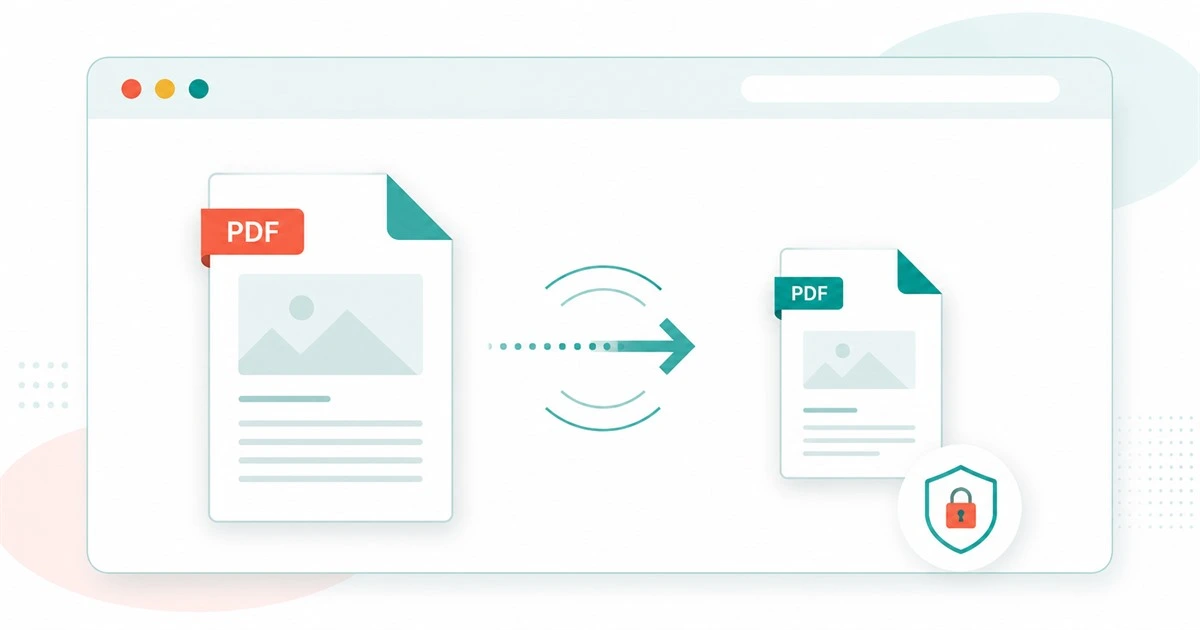
Large PDF files can be frustrating. They can be too big for email attachments, slow to upload to online forms, awkward to share from a phone, and inconvenient to store. Compressing a PDF can help make a document easier to send, upload, archive, or share.
At the same time, many PDFs contain information that should be handled carefully. A document might include an invoice, a contract, an ID scan, a signed form, or business records. Before using any online PDF compressor, it is worth asking a simple question: does this file really need to be uploaded?
If you want to compress PDF without uploading files unnecessarily, a browser-based tool can be a safer and more convenient option.
PDFextreme is designed to process supported PDF tasks directly in your browser whenever possible. That approach can reduce unnecessary uploads and gives users more control over their documents while still making common PDF tasks simple.
Why PDF File Size Matters
A large PDF can create practical problems:
- Email attachment limits: many email services limit the size of files you can send.
- Slow uploads: large files take longer to upload to forms, portals, and cloud storage.
- Storage use: oversized PDFs can take unnecessary space on your device or account.
- Mobile sharing issues: sending a large document from a phone can be slow or unreliable.
- Online form restrictions: job applications, government forms, school portals, and client systems often have strict file size limits.
Reducing PDF file size can make the document easier to handle, but the goal is not always to make the smallest possible file. The better goal is to find a useful balance between size and quality.
What PDF Compression Actually Does
PDF compression reduces file size while trying to keep the document usable. In simple terms, a compressor may reduce image size, recompress images, remove unnecessary data where possible, or rebuild parts of the file more efficiently. A scanned PDF with large images may shrink a lot. A text-based PDF that is already optimized may shrink only slightly.
This is why no PDF compressor should promise a guaranteed reduction for every file. Some PDFs contain plenty of data that can be reduced. Others are already compact or contain content that cannot be safely reduced without harming quality.
Why Uploading PDFs Can Be a Privacy Concern
PDF files often include personal, legal, financial, or business information, such as contracts, IDs, invoices, forms, signatures, internal records, and client documents.
Uploading those files to an unknown service can create unnecessary privacy risk. Users should understand what happens to their files, whether files are uploaded, how long they are stored, and whether third-party processing is involved.
Not every online tool works the same way. Some tools require server-side upload because the task cannot be handled in the browser. Other tools can process supported files locally in the user’s browser. When local processing is possible, it can be a better fit for users who want to reduce unnecessary file transfers.
Browser-Based PDF Compression Explained
A browser-based PDF compressor uses JavaScript and browser capabilities to work with the file on your own device whenever technically possible. Instead of sending the file away first, the browser can read and process the document locally.
If you want to compress PDF without uploading files unnecessarily, a browser-based tool can be a safer and more convenient option.
PDFextreme is designed to process supported PDF tasks directly in your browser whenever possible. This does not mean every file, every browser, or every device will produce the same result. Very large PDFs, damaged files, encrypted PDFs, older browsers, or low-memory mobile devices may behave differently.
This can reduce unnecessary uploads and keep the workflow simple. To learn more, read how PDFextreme protects your files.
How PDFextreme Helps You Compress PDFs
The Compress PDF tool on PDFextreme is built for simple, browser-based compression whenever possible. It is free to use and does not require desktop software.
The tool helps users understand what they are working with before and after compression. It shows a first-page preview, the file name, the original file size, and page count when available. Users can choose low, medium, or high compression depending on the balance they want between file size and visual quality.
After compression, PDFextreme shows the compressed file size, space saved, compression level used, and a clear download button.
Step-by-Step: How to Compress a PDF with PDFextreme
- Open the Compress PDF tool.
- Select your PDF or drag it into the upload area.
- Check the first-page preview and file details.
- Choose low, medium, or high compression.
- Click the compress button.
- Compare the original size and compressed size.
- Download the compressed PDF.
If you need to prepare a document before compressing it, you may also want to merge PDF files, split a PDF, or remove pages from a PDF first.
Which Compression Level Should You Choose?
Different documents need different compression settings. A document for personal reference can often use stronger compression, while professional or official files may need better visual quality.
- Low compression: best when visual quality and document structure matter more than maximum file reduction.
- Medium compression: a balanced option for most everyday PDFs.
- High compression: useful when you need a smaller file and can accept possible quality trade-offs.
Always review the compressed PDF before sending, submitting, printing, or archiving it. Compression can affect image quality, especially in scanned documents or files that contain photos.
What If Your PDF Is Already Optimized?
Sometimes a PDF will not get much smaller. That usually means the document was already compressed, contains mostly text, has little removable data, or includes content that cannot be reduced safely in the browser.
This is normal. A trustworthy PDF compressor should be honest about limited savings. If a compressed file is not meaningfully smaller, PDFextreme will not pretend that a large reduction happened.
Related PDF Tools You May Need
Compression is often one step in a larger document workflow. You can explore all available tools on the PDF tools page.
If you need to combine documents, try Merge PDF. If you only need certain pages, use Split PDF or Remove PDF Pages. If you are creating a document from images, try JPG to PDF or PNG to PDF.
For privacy details, read the Privacy Policy and the guide on browser-based file protection.
Frequently Asked Questions
Can I compress a PDF for free?
Yes. PDFextreme provides a free PDF compressor designed to work directly in your browser whenever supported by your device and file.
Is it safe to compress PDFs online?
It depends on the tool and how it handles files. Browser-based tools can reduce unnecessary uploads when the task is supported locally. You should still avoid processing highly sensitive files on public or shared devices.
Will compressing a PDF reduce quality?
It can. Lower compression usually preserves better quality, while stronger compression may reduce image quality. Always review the final PDF before relying on it.
Why did my PDF not get much smaller?
Your PDF may already be optimized, mostly text-based, encrypted, or built in a way that leaves little data to reduce safely. Some files naturally compress better than others.
Which compression level should I use?
Medium compression is a good starting point for most users. Choose low when quality matters more, and high when reducing file size is the main priority.
Does PDFextreme upload my PDF to a server?
If you want to compress PDF without uploading files unnecessarily, a browser-based tool can be a safer and more convenient option.
PDFextreme is designed to process supported PDF tasks directly in your browser whenever possible. This reduces unnecessary uploads, but users should still read the tool page and privacy information for important limitations.
Conclusion
Compressing a PDF can make a document easier to email, upload, store, and share. The safest approach is to use a tool that is clear about how it handles files and honest about compression limits.
To get started, open the PDFextreme Compress PDF tool, choose your compression level, compare the result, and download your compressed file. You can also explore more free PDF tools for merging, splitting, converting, and editing PDFs in your browser whenever possible.
Free, fast and privacy-focused PDF tools designed to work directly in your browser whenever possible.
Privacy & Trust
© 2026 PDFextreme. All rights reserved.